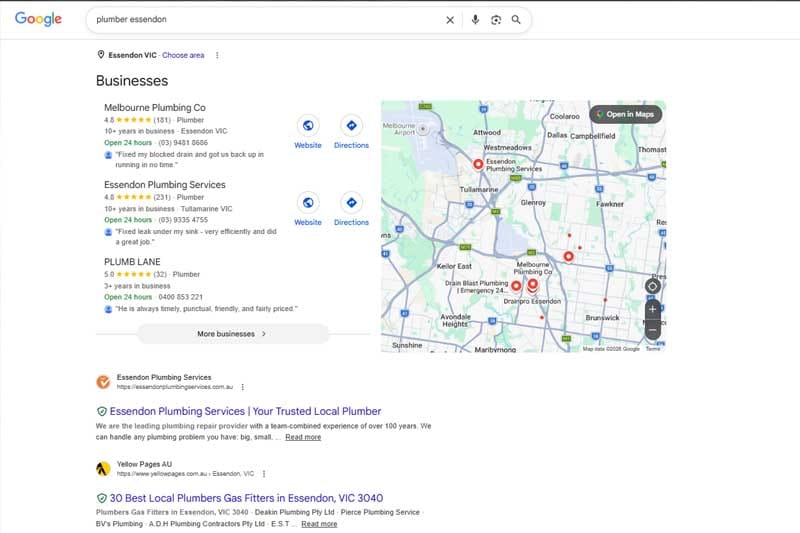
Essendon Business Owners: Here’s Why Your Competitors Rank Higher Than You
If you run a business in Essendon and you’re not showing up when locals search…

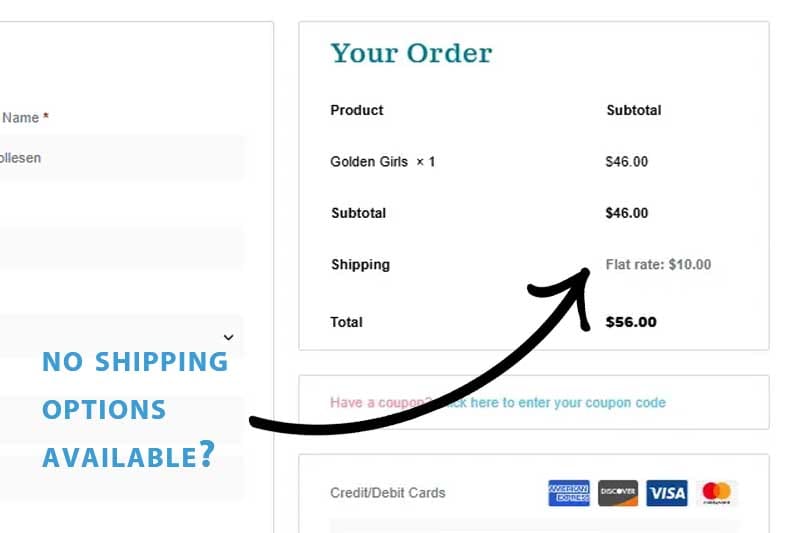
If your WooCommerce checkout is showing “There are no shipping options available” and you’ve already checked your shipping zones, confirmed the plugin is active, and cleared the cache, this post is for you. The most common cause of WooCommerce shipping not showing is not a plugin configuration issue. It’s missing product data, and WooCommerce gives you no indication that’s where the problem is.
I ran into this while setting up Australia Post shipping for an ecommerce client, a Sydney-based brick-and-mortar shop expanding into online sales. I’d installed the plugin, connected the credentials, enabled real-time rates, and selected the correct services. Everything looked right. The checkout still showed no shipping options. ELEX, the plugin developer, identified the cause via support ticket. It had nothing to do with any of the settings I’d been checking.
WooCommerce shows the same message regardless of what’s actually wrong. The API could be failing. The credentials could be incorrect. The product could fall outside a configured zone. You get the same message in every case, which is why most people start by checking their zone configuration and plugin settings rather than their product data.
The ELEX plugin calculates shipping rates by sending Australia Post’s API the weight and dimensions of the items being ordered. Australia Post returns rates based on those specifications. If a product has no weight or dimensions entered, the plugin has nothing to send. The API request fails silently and WooCommerce displays its generic message. There’s no alert and no warning in the plugin settings. Nothing points you toward the product as the source of the problem.
The weight and dimensions fields sit in the product editor under the Shipping tab, inside Product Data. WooCommerce doesn’t mark them as required, so they’re easy to overlook when you’re focused on getting everything else configured. This is genuinely one of the harder WooCommerce issues to diagnose because the symptom sends you looking in the wrong place.
Before finding the actual fix, I worked through a few reasonable assumptions that turned out to be wrong.
The first was that the shipping method hadn’t registered correctly with WooCommerce. I went looking for “MyPost Business” as a method to add manually to a shipping zone, and it wasn’t there. That’s a misunderstanding of how the plugin works. You add “Australia Post” as the zone method, and the plugin uses your MyPost Business account as the rate source behind the scenes. It doesn’t appear as its own named option in the zone dropdown, which isn’t obvious from the setup flow.
The second assumption was that an existing Click-and-Collect method in the Australia zone was blocking the plugin’s rates. WooCommerce only shows methods configured within the matched zone, so testing with a clean zone was sensible. Removing Click-and-Collect didn’t change anything.
After that I assumed a plugin bug. The configuration looked correct on every screen I could find, so I told the client we’d escalate to ELEX support. I suggested flat rate shipping as a temporary fallback. For a store mid-setup that’s genuinely disruptive: customers see inaccurate costs, or you push the launch back while you wait for a resolution. ELEX identified the problem quickly. It had nothing to do with the plugin.
Before adjusting any plugin settings, check your product data. Here’s the exact sequence:
If rates appear, missing product data was your problem. If they still don’t show, check your plugin credentials next. For the ReachShip and ELEX setup, confirm you’ve entered your ReachShip Client ID and Client Secret correctly in the plugin’s General tab. You’ll find those credentials in your ReachShip dashboard under API Settings. Product data is still the right first check though — it’s the most common cause and takes thirty seconds to rule out.
If you’re building WooCommerce stores for clients, adding product dimensions to your pre-launch checklist will save you this conversation. The full website build process we follow has this check built in before anything goes live.
Once the rates appeared, a new issue surfaced. Ordering two bundles doubled the shipping cost exactly: one box at $14.10, two boxes at $28.20. Australia Post calculates rates based on total shipment weight, not per unit. The doubling was wrong.
The cause was the packing method setting in the ELEX plugin. The default setting charges per individual unit in the cart. Switching to weight-based calculation fixes it:
After the change, two boxes came to $22.25 and three boxes came to $24.75. Australia Post’s weight tiers increase the cost with weight, but not proportionally. That’s the correct behaviour. A customer who sees double the shipping cost for two items will often abandon the cart. Check this setting before you go live.
WooCommerce treats weight and dimensions as optional because for many stores they genuinely are. Flat rate shipping, free shipping, and local pickup work without any product dimensions. The ELEX plugin needs them to function, but nothing in WooCommerce’s interface makes that dependency clear. It’s the kind of thing you only discover when checkout breaks.
Keeping a WooCommerce site running properly means building these kinds of checks into how you manage the site, not just at setup. If you’ve been going in circles on this and want someone to look at your specific setup, get in touch and we can work out what’s going on.
Let's talk about your website and online presence. We'll talk about what's working (or not), and figure out if I can help your business get more customers online.
 Naomi Hermans
- Your website person -
Naomi Hermans
- Your website person -